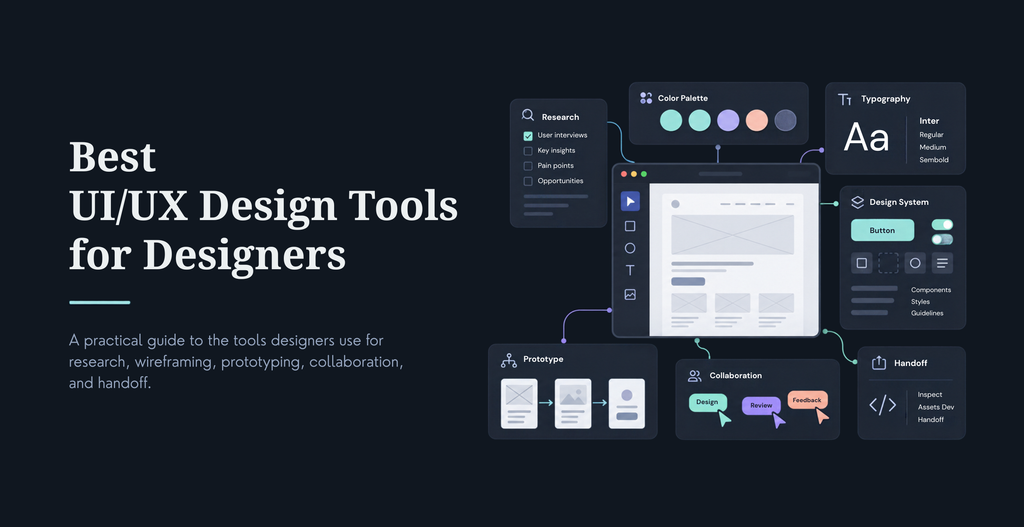
The best UI/UX design tool for you depends less on features and more on one question: are you designing, prototyping, documenting a system, or handing work to developers? Figma remains the default for most product teams building collaboratively. Framer is the pick when the design needs to become a live, animated site without a separate build step. Penpot is the honest free option now that Adobe XD has been quietly discontinued. And AI tools like Figma Make and Uizard have moved from novelty to genuinely useful for the first pass of a design, not the finished one.
A fancy interface that crashes on the first click, or a bounce rate nobody wants to look at, isn’t a design problem you can template your way out of. The right tool stack matters because it changes how fast your team can go from idea to something a user can actually click. Here’s what’s worth using right now, organized by what you’re actually trying to do.
How We Chose These Tools
We weighted six things when putting this list together: core design capability, real-time collaboration, how AI features actually function day to day rather than in a demo, developer handoff quality, accessibility support, and pricing relative to what you get. A tool that’s brilliant at wireframing but has no way to hand a build-ready spec to a developer doesn’t make the cut on its own, it gets paired with something that covers that gap.
On the design system audits we run for clients, the single biggest cost driver isn’t which tool a team picked, it’s picking three overlapping tools that all do the same thing slightly differently. A clean two-tool stack beats a cluttered five-tool one almost every time. For more on what that looks like in practice, our UI/UX design services page covers how we scope a design workflow around a client’s actual team size and handoff needs.
Browser-based, real-time collaborative editing with unlimited comments and version history
Auto layout, components, and variables for building a real design system, not just a mockup
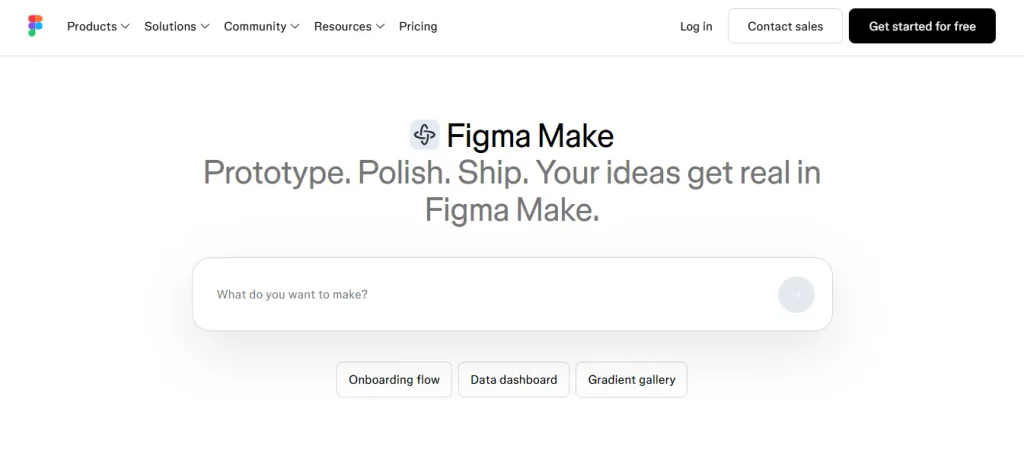
Figma AI (First Draft, Replace Content, Make an Image) and Figma Make, which turns a prompt or design file into a working prototype
Dev Mode for direct code inspection, plus Code Connect for mapping components to production code
Pricing: Starter is free (3 team files, limited AI credits). Professional runs about $15 to $16 per editor per month billed annually. Organization and Enterprise add SSO, shared libraries, and higher AI credit allowances at $55 and $90 per seat.
Figma still dominates team-based product design, and its AI tooling has moved from a side panel to something genuinely embedded in the workflow this year. Its main downside is cost creep, the seat structure and AI credit system mean a growing team’s bill can climb faster than expected.
A native Mac app, still Mac-only, built specifically for interface design rather than general graphics
Fast, focused vector tooling with a loyal base of solo designers and small studios
Frequent updates aimed at speed and polish rather than chasing every collaboration feature
Sketch holds its ground with designers who want a native, responsive app and don’t need cross-platform, browser-based collaboration. It’s the right call for a solo designer or small Mac-only studio, and the wrong call for a distributed team.
Fully open-source and free, including unlimited files and seats, with an option to self-host
Generates real CSS, HTML, SVG, and JSON directly from the design, cutting down on handoff guesswork
Design tokens, auto-layout, and interactive prototyping built into the core canvas
Penpot has grown from an interesting open-source experiment into a genuine production tool, with a browser-based, Figma-like workflow. Its plugin ecosystem and AI features are still thinner than Figma’s, and real-time collaboration lags behind, but for a team with a zero-budget constraint or a preference for open infrastructure, it’s the most complete free option available.
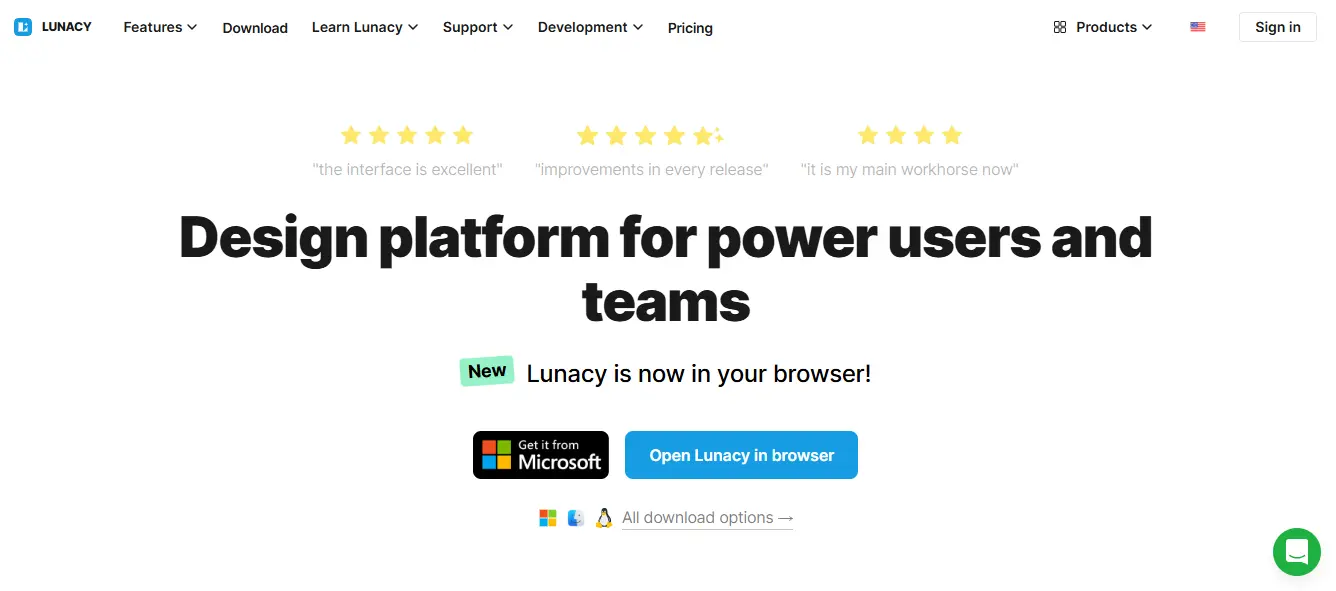
Free, cross-platform, and opens native .sketch files on Windows and Linux, not just Mac
Built-in AI tools for background removal, image upscaling, and content generation
A large built-in template and icon library
Lunacy is the closest thing to Sketch for Windows users, and it’s genuinely free rather than a limited trial. It’s a strong pick for teams that need to open Sketch files without owning a Mac.
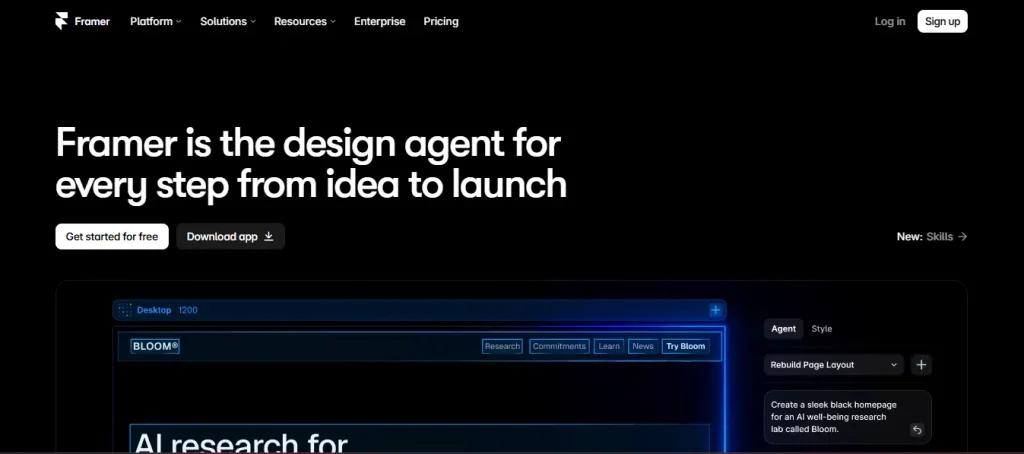
A visual canvas that publishes directly to a live, hosted site, no separate build or deploy step
AI agents that can restyle a page, rewrite copy, build new sections from a prompt, or migrate a site from WordPress or Webflow
Built-in CMS, custom domains, CDN hosting, and an SEO panel
Pricing: a free plan for a single branded site, with paid plans starting around $10 a month and scaling to roughly $30 a month for a Pro tier with more pages and CMS collections.
Framer has effectively pivoted from a pure prototyping tool into a full AI-assisted website builder with real design polish. If your prototype needs to become the actual live site, Framer removes an entire handoff step that every other tool on this list still requires.
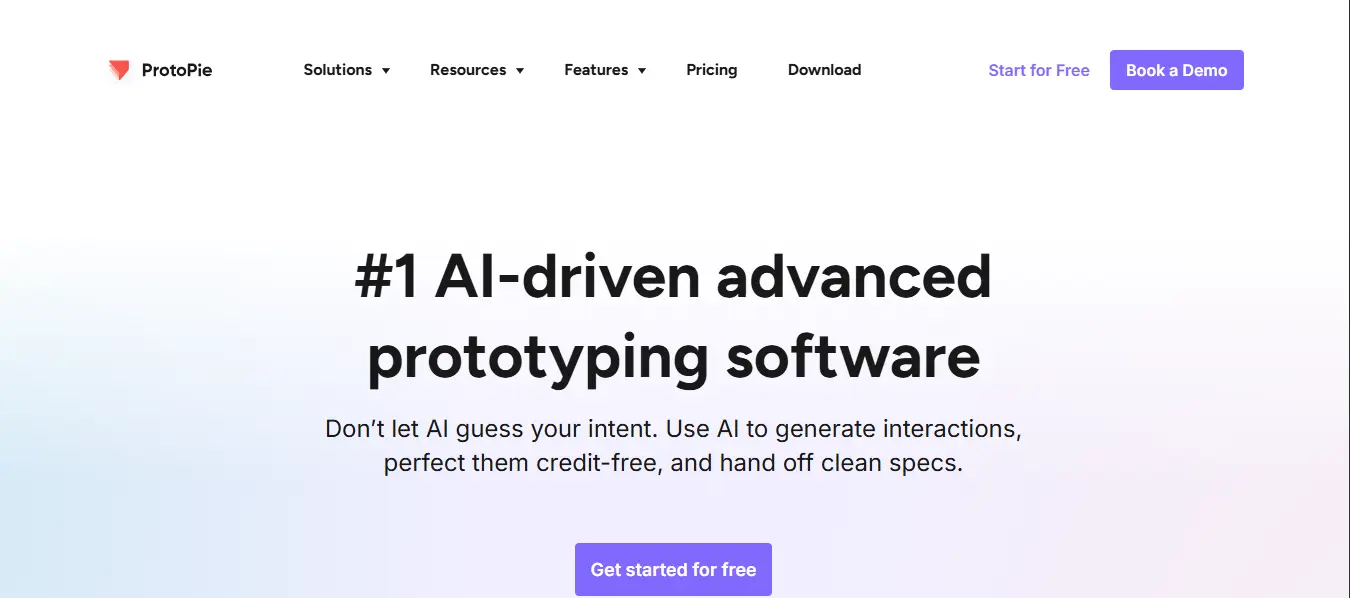
Built for complex micro-interactions and device sensor input, motion, camera, microphone, and more
Condition-based logic for prototypes that behave like real software, not just clickable screens
ProtoPie is the right choice when a prototype needs to demonstrate genuinely complex interaction behavior, like a fitness app responding to device motion, rather than a standard screen-to-screen flow.
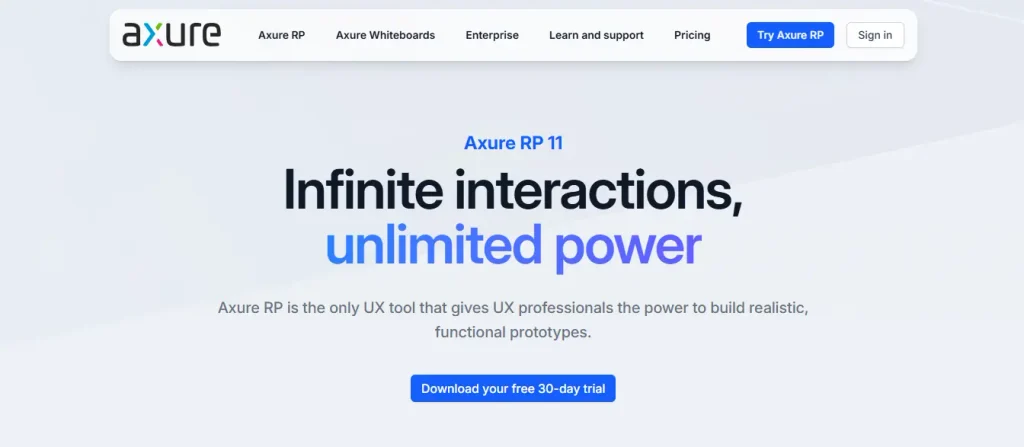
Enterprise-grade prototyping with conditional logic, variables, and dynamic content
Built-in documentation and specification generation alongside the prototype itself
Axure remains the choice for enterprise teams that need to document detailed functional requirements, not just a visual flow, particularly in regulated industries where a prototype needs to double as a spec.
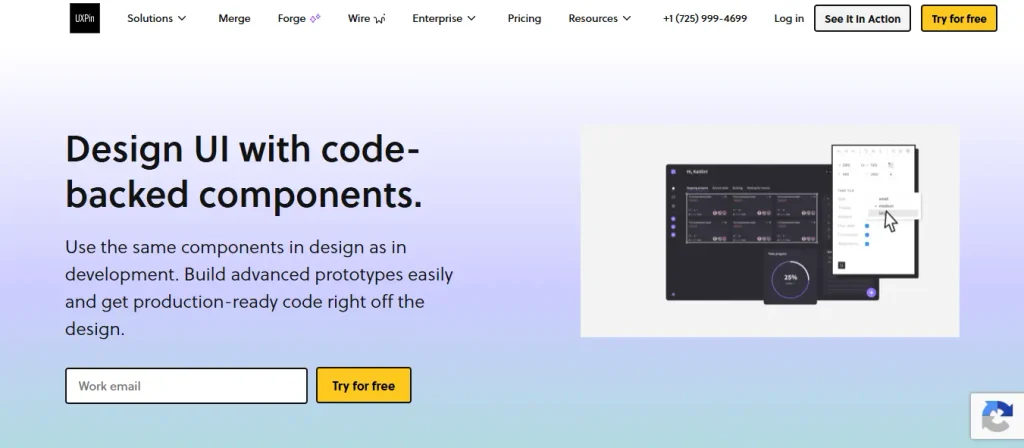
Code-backed components that behave like the real production UI, not static shapes
Built-in accessibility checks and design system integration
Available on Mac, Windows, and directly in the browser
UXPin’s pitch is prototypes that feel real because they’re built from actual code components. It’s a strong middle ground between a visual design tool and a fully coded build.
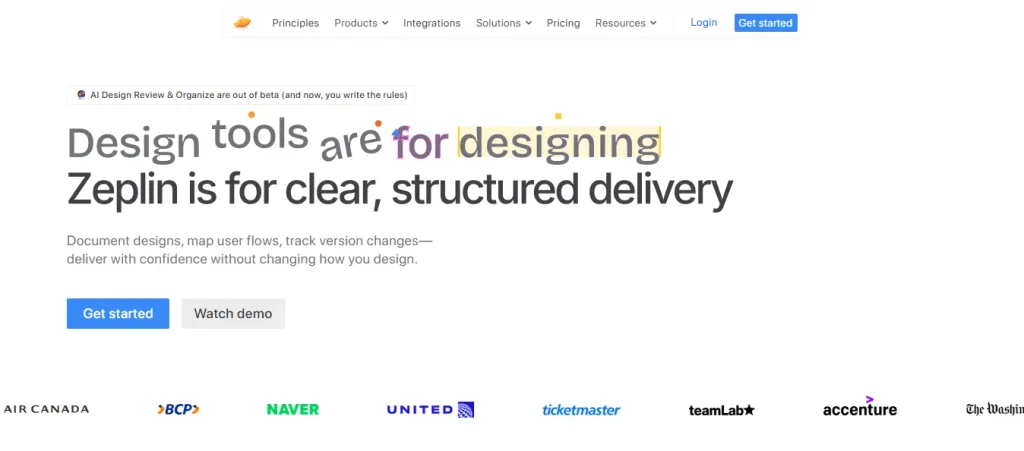
A dedicated developer handoff layer: exact spacing, color, typography, and component values, generated automatically
A mature, decade-plus-old workflow with detailed version history
Pricing: free for one project, roughly $6 per member per month for the Starter paid tier.
Zeplin doesn’t try to be a design tool. It’s a read layer for developers built on top of whatever you design in. Figma’s own Dev Mode covers a lot of this ground now if you’re Figma-only, but Zeplin still earns its place for teams working across Sketch, Figma, and other tools at once.
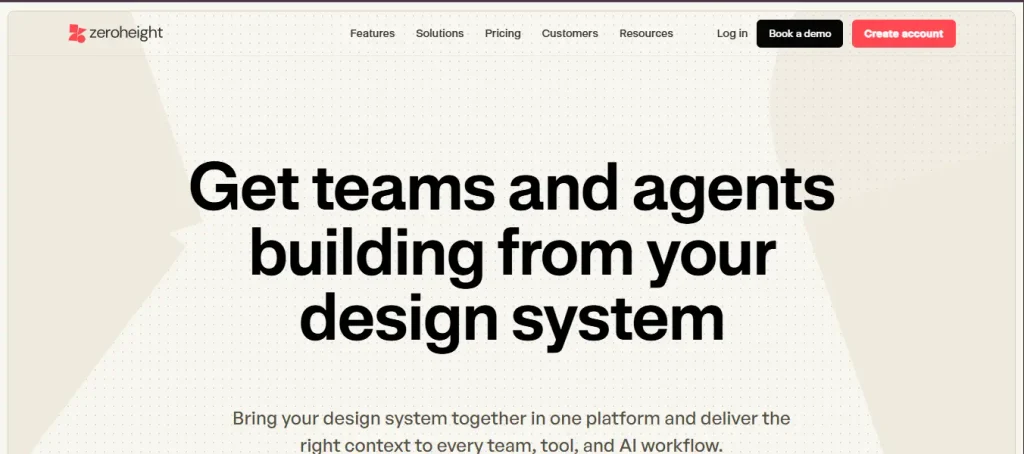
Living documentation for your design system, embedded directly from Figma components
Publishes a polished, searchable style guide without much configuration
Zeroheight is the simpler of the two documentation-focused tools here. It’s the right call when your design system’s problem is that nobody can find the current rules, not that your tokens are out of sync across platforms.
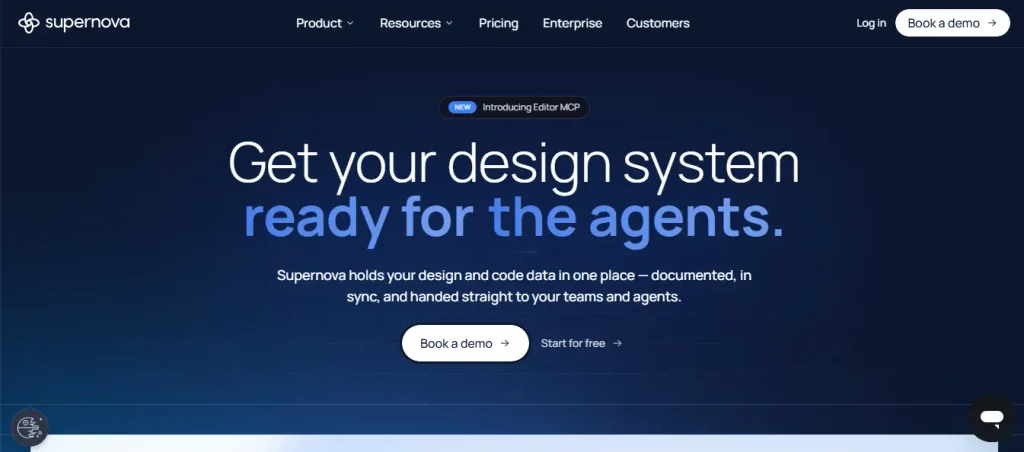
Pulls design tokens, components, and guidelines into one place and pushes production-ready output to engineering, including an MCP server for AI-assisted workflows
Automates token propagation across web, iOS, and Android so a single color change updates everywhere
Supernova is the specialist pick when your handoff problem is really a token-consistency problem across multiple platforms. It has a steeper setup than Zeroheight, but the automation pays off at scale.
AI-Powered Design Tools
AI in design tooling stopped being a novelty plugin around 2025 and became a built-in layer inside the tools you already use. Figma AI and Figma Make are covered above since they’re now core to Figma itself. Here’s what’s worth knowing beyond that.
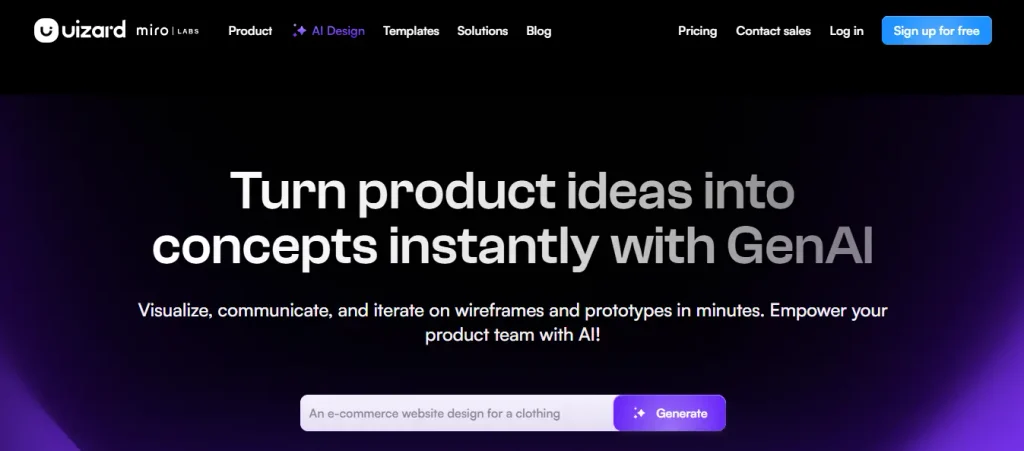
Converts sketches, screenshots, or text prompts into editable UI prototypes in minutes
Solid collaborative features for sharing interactive previews with stakeholders
Pricing: around $15 a month for Pro, $39 a month for Business.
Uizard’s output is functional rather than polished, and that’s by design. It’s meant for validating an idea fast before you invest in real design work, not for shipping a finished interface.
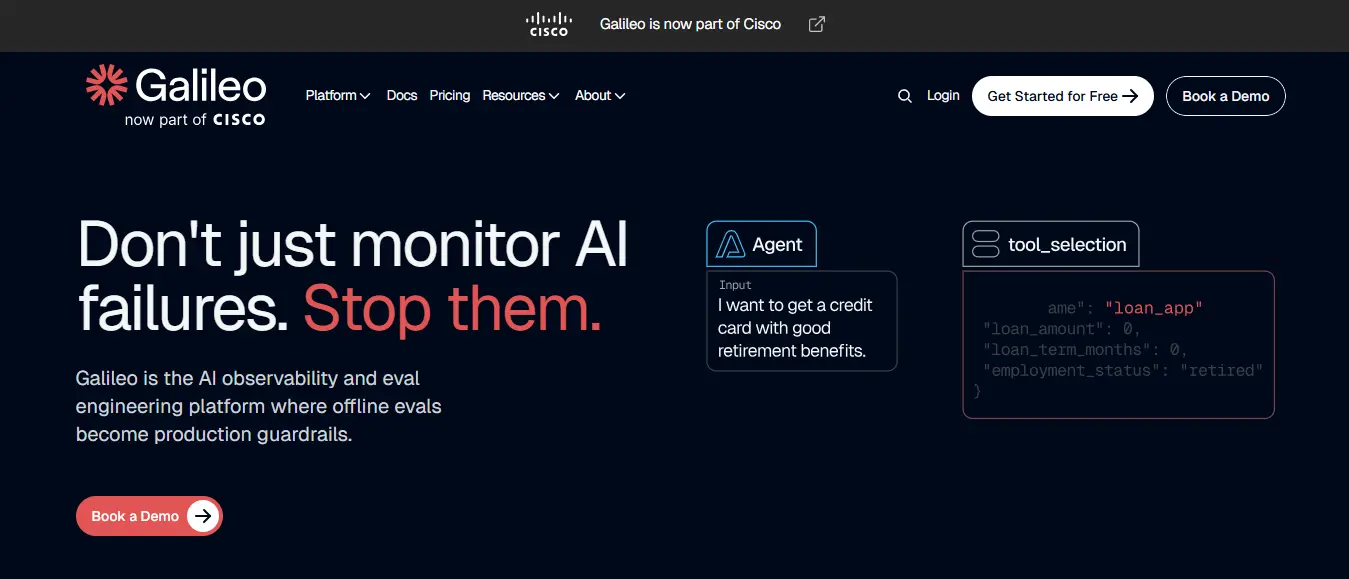
Generates high-fidelity UI designs directly from text prompts
Useful for rapid ideation when you need several visual directions fast
Galileo AI leans toward polish over editability. It’s a strong tool for generating starting points, less suited to being the single tool your team designs the final product in.
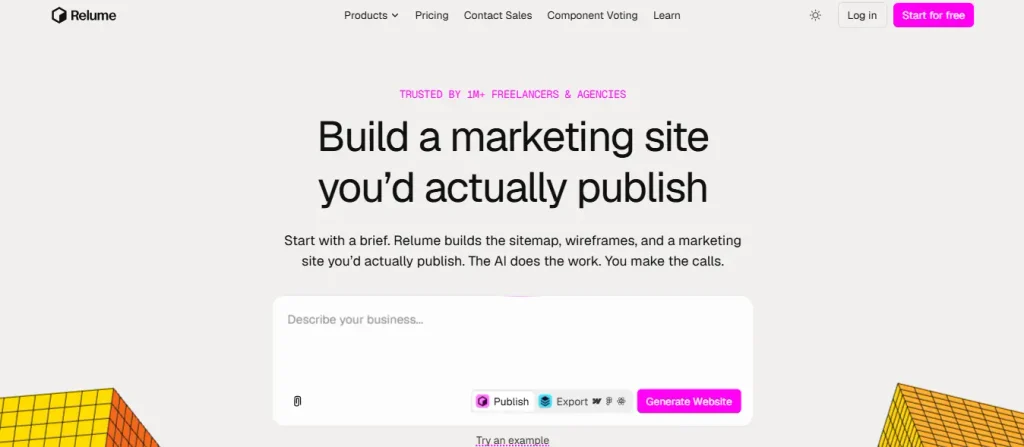
AI-generated wireframes and sitemaps, built specifically for the planning stage of a website
Exports directly into Webflow, which shortens the path from sitemap to buildable site
Relume fits the planning phase specifically, mapping out a site’s structure before anyone touches visual design. It’s most useful paired with a team that’s already building in Webflow.
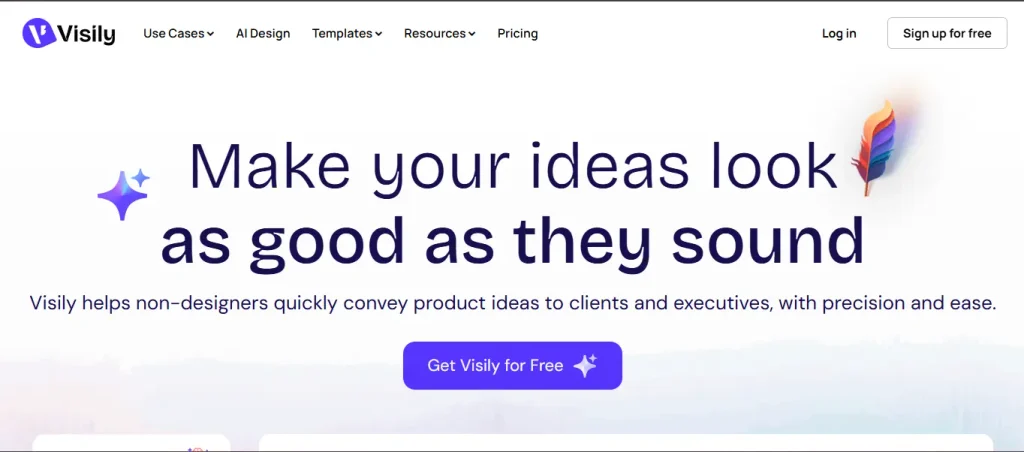
AI-assisted UI generation with a large template library aimed at non-designers
Quick prototyping for early-stage ideas and internal tools
Visily is aimed squarely at people who aren’t designers by trade, product managers and founders who need a clickable prototype without hiring a designer for a first pass.
Figma’s built-in whiteboard, with tight integration into your actual design files
Comes bundled into every paid Figma seat, so teams already on Figma don’t need a separate whiteboarding subscription
If your team already lives in Figma, FigJam removes the friction of syncing a separate whiteboarding tool with your actual design files.
How to Choose the Right Tool Stack
Define your primary use case: a startup MVP, an enterprise product, a design system rebuild, or freelance client work
Map your must-have features: AI assistance, accessibility checks, developer handoff, real-time collaboration
Consider your team size and collaboration model: solo, small team, distributed, or agency
Check integration with your development stack: React, Flutter, iOS, Android
Evaluate total cost across seats, storage, and AI credits, not just the advertised entry price
Run a short pilot, two to four weeks, with your top two or three shortlisted tools before committing
If You Are…
Start With
A solo freelancer on a tight budget
Figma’s free Starter plan, or Penpot if you want fully open-source
A small team without a developer on hand
Framer, for design and publishing in one step
An enterprise team with a mature design system
Figma Organization paired with Supernova or Zeroheight
Validating an idea before committing to design work
Uizard or Visily for a fast, editable first pass
Documenting handoff for a distributed dev team
Figma Dev Mode plus Zeplin for teams spanning multiple design tools
Trends Worth Knowing
AI co-pilots are now a baseline expectation, not a differentiator: auto-layout suggestions, content generation, and accessibility fixes are showing up across nearly every major tool. Design-to-code has gotten genuinely more reliable, with tools like Figma Code Connect narrowing the gap between what a designer ships and what a developer has to rebuild by hand. Accessibility checks are increasingly built into the design tool itself rather than bolted on as a separate audit step, and design ops, versioning, approval flows, and usage analytics for a design system, has become its own category rather than an afterthought.
Common Mistakes When Choosing a Tool Stack
Chasing AI features over whether the tool actually fits your team’s core workflow
Over-tooling: running three overlapping apps that all do roughly the same job
Ignoring developer handoff quality until a project is already in build
Picking a tool with no accessibility features in an increasingly regulated environment
Underestimating the training and onboarding cost of switching an established team to a new tool
Final Thoughts
The best UI/UX design tool depends on your workflow, your team, and your product’s complexity, not on which tool has the flashiest AI demo. Use this list as a starting point for a focused stack that actually gets used, rather than a growing pile of subscriptions nobody fully adopts. For a deeper look at the fundamentals behind good UI/UX regardless of which tool you pick, our guide on how to improve UI/UX to increase conversion and our roundup of current UI/UX design trends are worth reading next.
What are the best UI/UX design tools for beginners?
Figma’s free Starter plan is the easiest entry point, since it runs in any browser and has the largest library of tutorials and community templates. Visily and Uizard are worth trying if you’re not a trained designer and just need a clickable prototype fast.
Is Figma still the best UI design tool?
For most team-based product design work, yes. It combines real-time collaboration, a mature component system, and AI tooling (First Draft, Figma Make) that’s now genuinely embedded rather than bolted on. Sketch and Penpot remain strong alternatives depending on your platform and budget constraints.
Which UI/UX tools have the best AI features?
Figma AI and Figma Make lead for teams already inside Figma’s ecosystem. Framer AI is strongest when the goal is a live, published site rather than a design file. Galileo AI and Uizard are worth a look specifically for fast, early-stage ideation.
What is the best free UI design tool?
Penpot is the most complete, fully free option, since it’s open-source with unlimited files and seats. Figma’s free Starter plan is a close second, with a larger ecosystem but a 3-file limit on team projects.
How do I choose between Figma, Sketch, and Penpot?
Pick Figma for a distributed team that needs real-time collaboration and the deepest plugin ecosystem. Pick Sketch if your team is Mac-only and wants a fast, native app without a subscription’s worth of collaboration features you won’t use. Pick Penpot if budget or open-source infrastructure is a hard requirement.
Which tools are best for design systems and handoff?
Figma Dev Mode covers most handoff needs if your team is already Figma-only. Add Zeplin if you’re working across multiple design tools, or Zeroheight and Supernova once you have a mature design system that needs living documentation and token management, not just screen-by-screen specs.
Nisarg Pandya
Project Manager
Experienced Project Manager and Scrum Master at KrishaWeb, delivers expertise in Scrum methodologies, Laravel, React.js, UX design, and project management, ensuring efficient project delivery and agile implementation.




 KrishaLabs
 KrishaStudio
 KrishaStore