---
title: "Learning to create full width page template in WordPress"
url: "https://live-krishaweb.pantheonsite.io/blog/learning-to-create-full-width-page-template-in-wordpress/"
date: "2017-06-06T10:27:20+00:00"
modified: "2023-03-28T09:42:15+00:00"
type: "Article"
resource: "https://live-krishaweb.pantheonsite.io/blog/learning-to-create-full-width-page-template-in-wordpress/"
timestamp: "2023-03-28T09:42:15+00:00"
author:
name: "KrishaWeb"
categories:
- "Web Development"
word_count: 2057
reading_time: "11 min read"
summary: "Using a built-in full width template in your WordPress theme
If your theme already comes with a full width page template then this process can come handy. Keep in mind that if your theme doesn&rsq..."
description: "Are you looking to create a full-width page template in WordPress for your business website? If yes, then today we are here with different techniques that ca..."
keywords: "Web Development"
language: "en"
schema_type: "Article"
related_posts:
- title: "WordPress AI Lead Capture: How B2B Teams Are Doubling Qualified Lead Ratios"
url: "https://live-krishaweb.pantheonsite.io/blog/wordpress-ai-lead-capture-qualified-leads/"
- title: "WordPress Website Cost: An Actual WordPress Price in 2026"
url: "https://live-krishaweb.pantheonsite.io/blog/wordpress-website-cost/"
- title: "AI in WordPress 2026: What WordPress 7.0 Changed and What It Means for Your Site"
url: "https://live-krishaweb.pantheonsite.io/blog/ai-wordpress-development/"
---
# Learning to create full width page template in WordPress
_Published: Tuesday,June 6, 2017_
_Author: KrishaWeb_
> Using a built-in full width template in your WordPress theme If your theme already comes with a full width page template then this process can come handy. Keep in mind that if your theme doesn’t come with a full width page template then this process can’t be used. Firstly, you need to edit a page or create a new one by clicking the Pages tab and then selecting option of Add New page....
As a website owner, you may want to make your WordPress site more visually appealing and engaging to your visitors. One way to achieve this is by using a full-width page layout, which can make your site stand out and provide a seamless browsing experience.
While many premium WordPress themes come with built-in full-width page layouts, you may not be using one of these themes. However, there are several ways you can create a full-width page for your site.
In this article, we will cover the definition of a full-width page and provide you with three methods for creating and laying out a full-width page. Whether you choose to use a plugin or the Elementor page editor, we will guide you through the process step-by-step to ensure that you can achieve the desired result for your WordPress site.
## What is a Full-Width Page Layout?
A full-width page layout is a design style where the content of a web page spans the entire width of the browser window, without any margins or padding on either side. This means that the content is stretched from edge to edge, providing a seamless and immersive browsing experience for the user.
In contrast to a standard page layout with margins and padding, a full-width page layout is ideal for showcasing high-resolution images, videos, or other visual elements. It can also help to draw attention to important content on the page and provide a more modern and sleek appearance to your website.
## When to Use a Full-Width Page Layout?
A full-width page layout can be used in a variety of situations where you want to create a visually engaging and immersive experience for your website visitors. Here are some examples of when to use a full-width page layout:
Landing pages: A full-width page layout can be used for landing pages to highlight a specific product, service, or promotion, and to draw attention to the call-to-action (CTA) buttons.
Portfolio pages: If you are showcasing your work as a photographer, artist, or designer, a full-width page layout can be used to display your high-resolution images and videos in a way that maximizes their impact.
Product pages: A full-width page layout can be used for product pages to showcase your products and their features with high-quality images and videos.
About pages: A full-width page layout can be used for about pages to tell your brand story with the help of large visuals, graphics, and interactive elements.
Blogs: If you want to create a more immersive and engaging reading experience for your blog readers, a full-width page layout can be used to display your blog posts with large images, embedded videos, and interactive elements.
Contact pages: A full-width page layout can be used for contact pages to highlight your contact information and make it easy for visitors to get in touch with you.
Overall, a full-width page layout can be used whenever you want to make a strong visual impact and create a more immersive and engaging experience for your website visitors.
## Using a built-in full-width template in your WordPress theme
If your theme already comes with a full-width page template then this process can come in handy. Keep in mind that if your theme doesn’t come with a full-width page template then this process can’t be used. Firstly, you need to edit a page or create a new one by clicking the Pages tab and then selecting the option of Add New page.
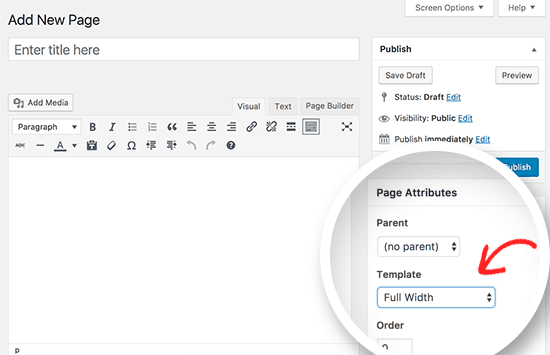
On the page edit screen, you can select full width as your template that you will find under the pages attributes Meta box. Once you get that done, you will have to save your page. Continue to edit the page if you need to add more content and click on the preview button to see progress further.

If you cannot find a full-width template option on your page edit screen then the theme you are using does not have a full-width page template. In that case, go through the steps to see how you can create a full-width page without changing your WordPress theme.
## How to create a full-width page template manually?
If you wish to create a WordPress Full-Width page template manually then you will need to have a basic understanding of PHP, CSS, and HTML. You should read how to copy and paste code in WordPress before proceeding. Before you, start dropping codes on the WordPress theme you need to ensure that you have a backup to your current theme. This is needed in case of a crash. You will be able to recover the theme from the saved point if you save it.
**Open a plain text editor like Notepad and paste the following code in a blank document:**
```